How to provide redundant connection to cameras🔗
Planning for redundant connection reservation to cameras🔗
Planning recommendations:
Select redundancy method.
Plan the computing power of the servers according to the following guidelines:
When calculating, please note that the analytics modules enabled for the camera do not run on the backup server.
If a server that is the primary server for other cameras will be used to redundantly back up some cameras,this must be accounted for in the server's capacity planning.
Determine the composition of license keys based on the required capabilities of the video surveillance system, the calculated computing power, and the following conditions:
The redundant server for a camera should be combined in a multi-server system with the primary server for that camera.
If the server is not the main server for any camera, but is a backup server for other cameras, it must have a license for at least one IP camera installed.
Setting up redundant connection to cameras🔗
Warning
The instruction should be performed on the installed video surveillance system with active licenses.
Follow the steps below to set up camera connection redundancy:
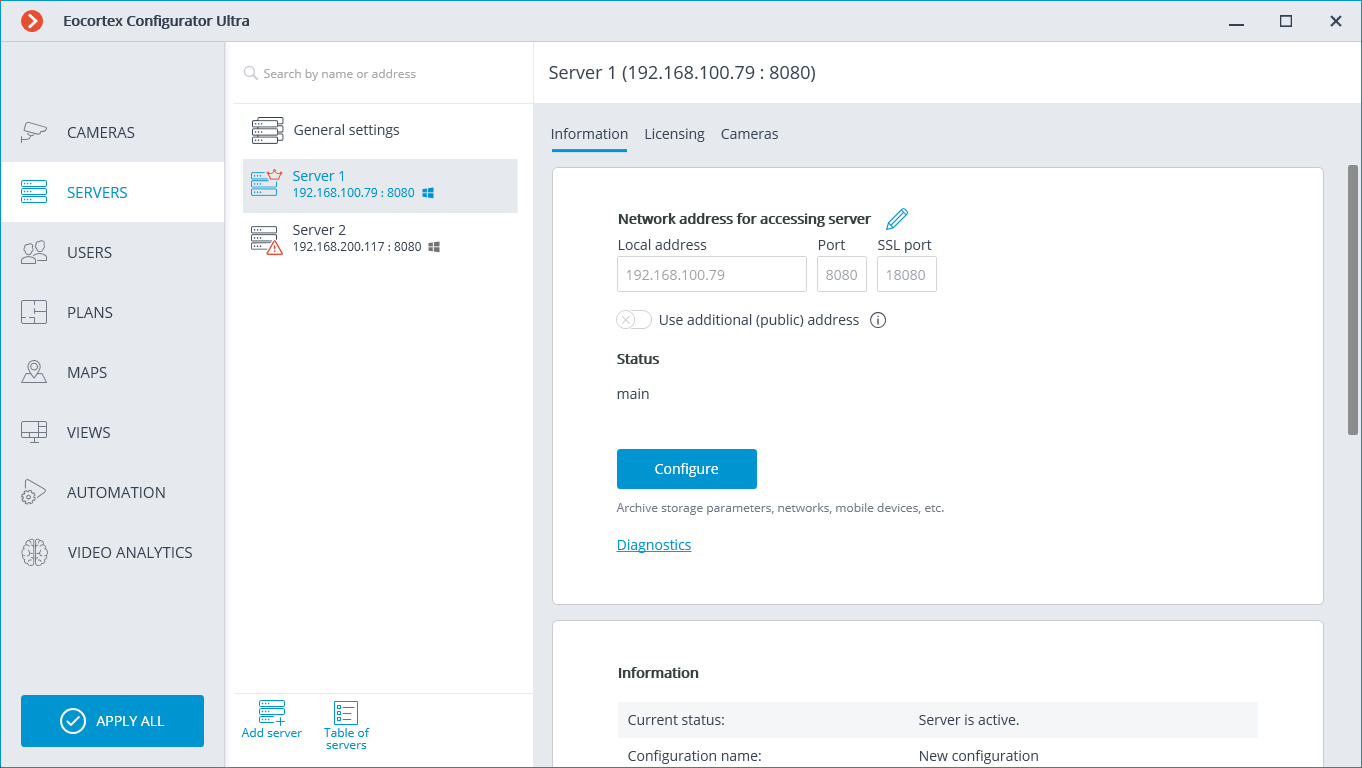
Select
 General settings from the list.
Go to the Cameras tab.
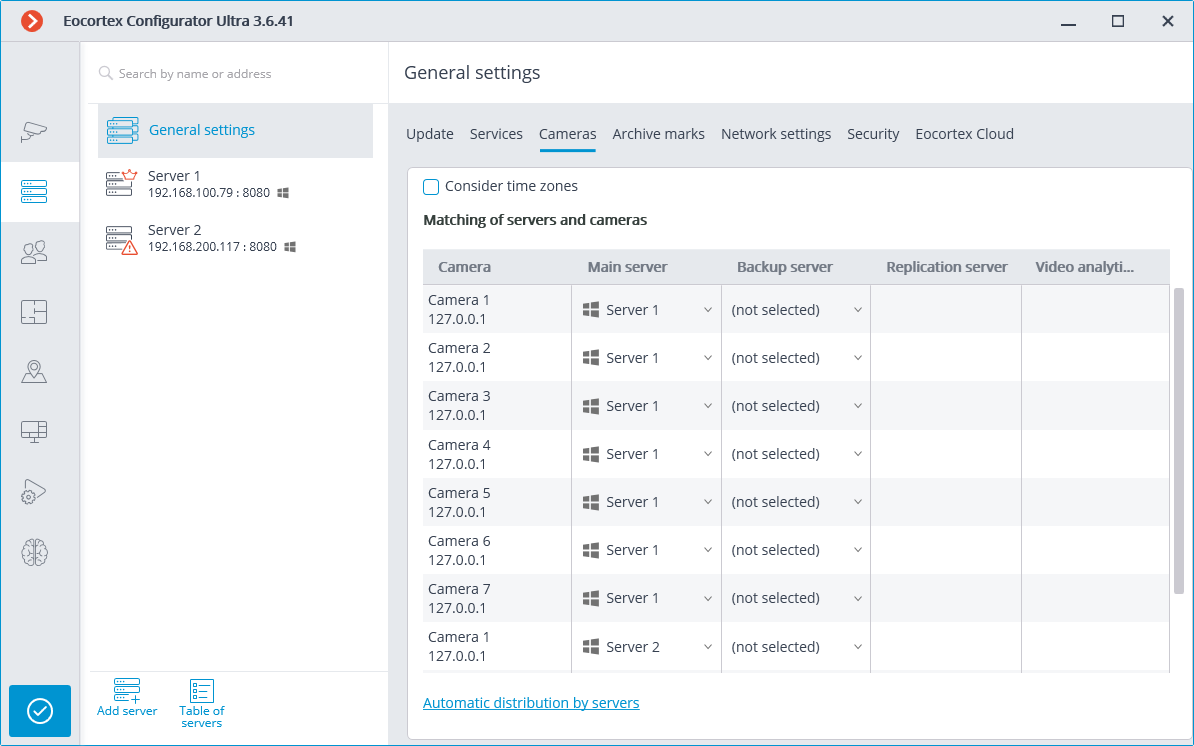
Assign redundant servers to the cameras.
Note
You can also select a redundant server in the camera's connection settings. To do this, in the Eocortex Configurator application, go to  Cameras, select the camera in the list, go to the Connection tab and select the server that will be the redundant server for the selected camera in the drop-down list Backup server.
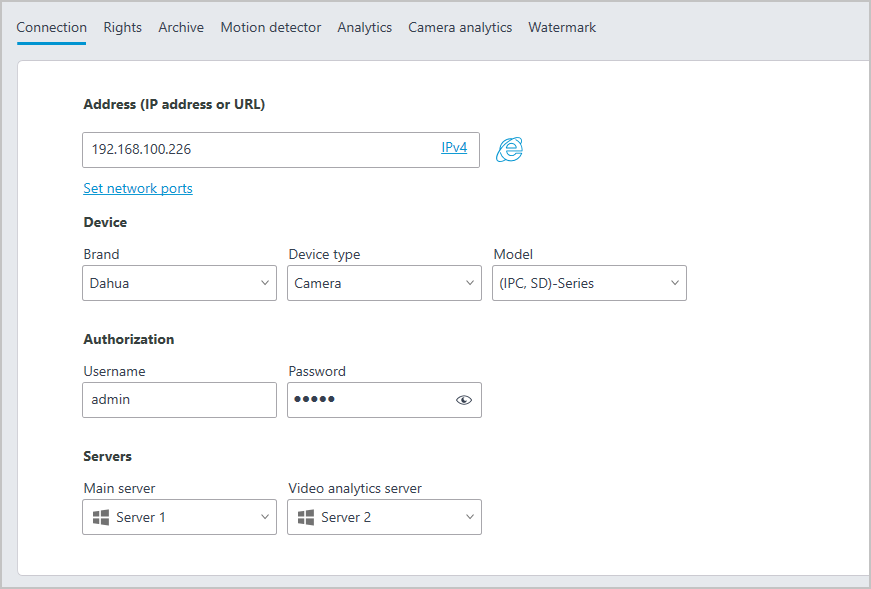
For each redundant server, steps 6 through 9:
Select a server in the list.
Scroll down the Information tab to the Backup (redundancy) section.
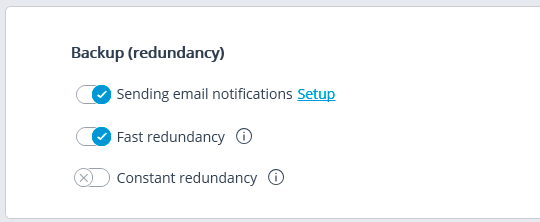
Turn on the Sending email notifications option if you want to send an email notification when redundancy is enabled.
Warning
When the Sending email notifications option is turned on, you need to configure the email sending settings. The settings window opens at Setup.

Set the redundancy mode to be used for all cameras redundantly reserved on this server:
When the Constant redundancy option is activated, the permanent-reservation mode will be used.
Warning
Cameras that use permanent backup will normally have two connections: from the main server and from the backup server. Thus, depending on the design of the cameras, the bandwidth may increase and/or the frame rate may decrease.
Warning
When permanent backup is enabled, email notifications about the backup will be disabled.
When the Fast redundancy option is activated, the fast-reservation mode will be used.
Warning
In systems where there may be intermittent, even short-term, disconnections between servers, enabling fast redundancy may result in false alarms.
If either of these options is not enabled, the normal redundancy mode will be used.
When all settings are complete, apply them.
Links